Create New Password
Setting a new password for your account
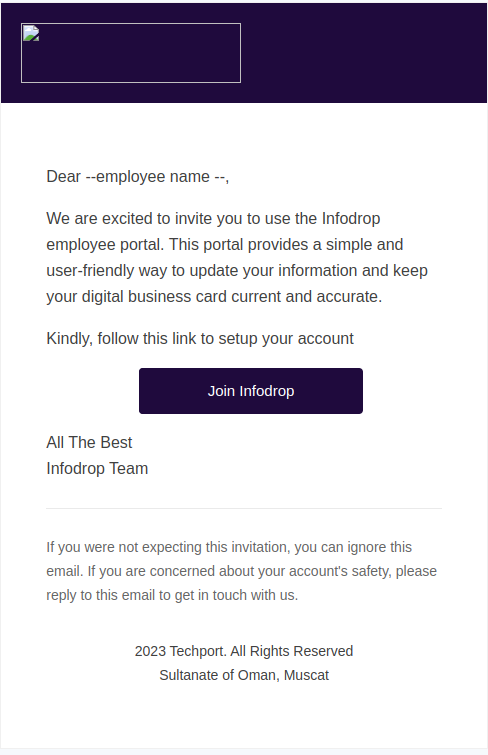
If you have received your invite link via email, you can set up a new password for your account by following this tutorial. The invite email will resemble the image shown below.
Steps
- After opening the invite email, locate the
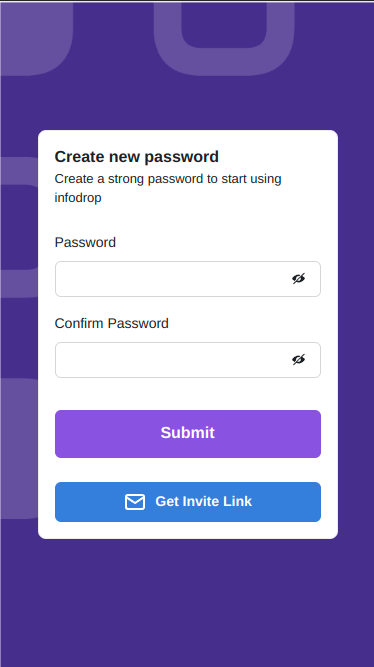
Join Infodropbutton and click on it. This will redirect you to a page where you can set your new password, as shown in the image below.
Use Strong Password
We recommend creating a strong password for your account. Consider the following recommendation.
- at least one Uppercase
- at lease one Lowercase
- at least one Number
- at lease one Special character like $,!
- the length of the password is recommended to be more than 10
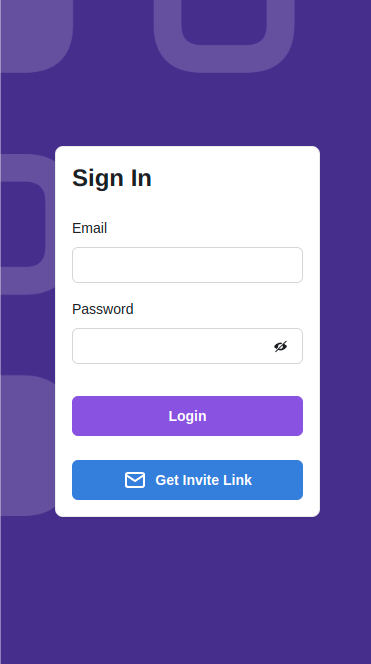
- Enter your desired password in both fields provided and then click 'submit'. After submission, you will be redirected to the login page, as shown in the image below.
tip
- You can visit https://portal.infodrop.om in case the page did not redirected automatically.
- If the link expired you can simply get a new invite link.
- If you forgot your password you can also get a new invite link.
- Once you created your password, follow edit profile tutorial.